If you're still reaching for FileZilla every time you want to manage your website files, it might be time to upgrade your workflow. The cPanel File Manager is a fast, secure, and powerful tool – and it's already built into your Australian cPanel hosting account.
Whether you're updating your WordPress config file, uploading an image, unzipping a backup, or tweaking permissions, File Manager lets you do it all – no FTP client required.
Let’s dig into the features you can start using right now to manage your website smarter and faster with cPanel File Manager.
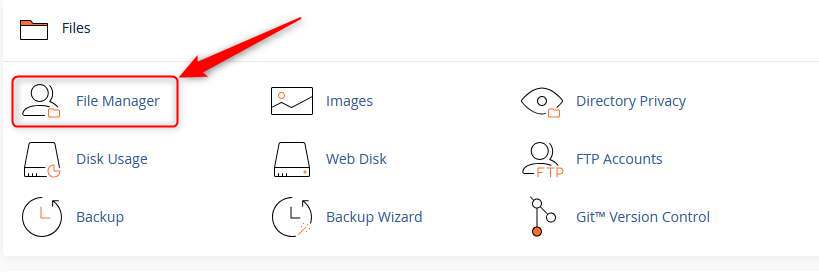
First things first: log into your cPanel dashboard via your hosting account. Once inside, find the File Manager icon (usually near the top under the “Files” section).
Click it and you’re in – no setup, no FTP credentials, no hassle.
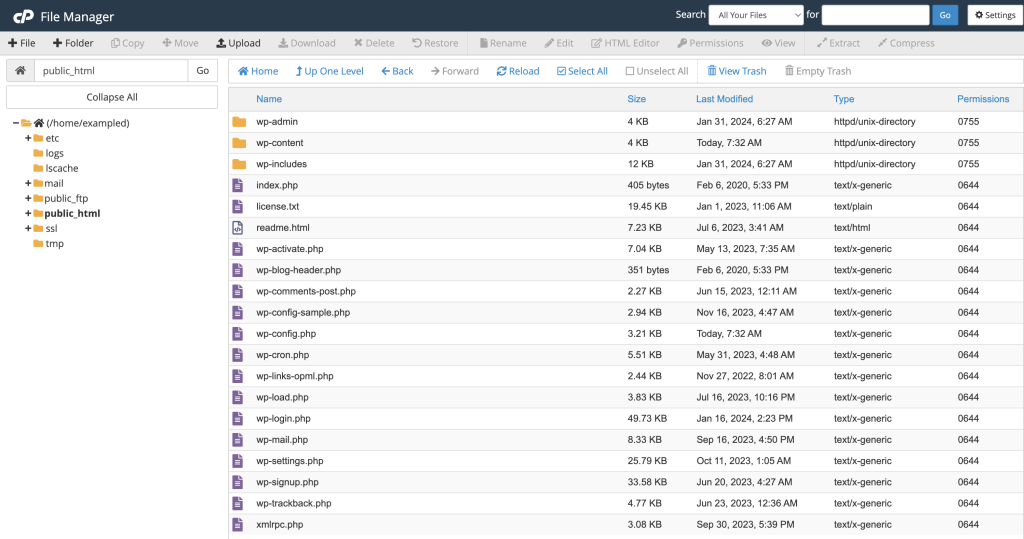
Your website lives inside the public_html folder. Think of it as the “root directory” for your domain. Here’s a breakdown:
Tip: If you don’t see hidden files like .htaccess, click “Settings” in the top-right and enable “Show Hidden Files”.
You can upload anything – WordPress themes, PDFs, images, zip archives – directly into any folder. Here’s how:
Pro Tip: Upload .zip files and extract them inside File Manager – way faster than uploading 50 individual files.
Need to back up a folder? Or unpack a theme? File Manager handles compression and extraction with ease.
This is especially handy for backups, migrations, or packaging up a dev copy of a site.
No need to open a code editor – File Manager has one built in. Just right-click any file and choose Edit or Code Editor.
This is perfect for:
wp-config.php to update database credentials.htaccess for redirects or security rulesSyntax highlighting, line numbers, and quick saves make it feel like VS Code Lite – right inside your browser.
Every file and folder has permissions that determine who can read, write or execute them. In File Manager, click “Permissions” in the toolbar or right-click > Permissions.
For most WordPress sites:
755644Never set folders to 777 – that’s a big security risk. If unsure, your hosting provider can help restore safe defaults.
Need to test a static page? Or create a temp folder? Use the + File or + Folder buttons to create them instantly anywhere in your structure.
Examples:
robots.txt filemaintenance.html pageWhen you first open File Manager, you’ll get a choice: open in home directory or the Web Root (public_html).
Choose Web Root to jump straight to where your actual website lives. It saves time, especially if you’re doing daily maintenance or uploads.
If you’ve broken your site by installing a bad plugin or theme, File Manager is your friend. Just:
wp-content/pluginsplugin-name-disabled)WordPress will deactivate it automatically – letting you get back into wp-admin to fix things!
For small business owners managing their own websites or working with a developer occasionally, File Manager is the perfect middle ground. It gives you full access, with none of the technical roadblocks of FTP clients or SSH access.
On premium Australian cPanel hosting, File Manager is lightning-fast, secure, and always available – giving you total control of your site files from anywhere in the world.
File Manager is encrypted via HTTPS and requires cPanel login credentials. To stay safe:
You don’t need a developer, an FTP client, or a computer science degree to manage your website files. With File Manager in cPanel, it’s all at your fingertips:
If you're using small business web hosting and want to take more control of your site – or simply save time – File Manager is where to start.
Want access to blazing-fast, feature-packed cpanel web hosting? Get in touch and we’ll help you find a hosting plan that gives you all the tools (and none of the clutter).