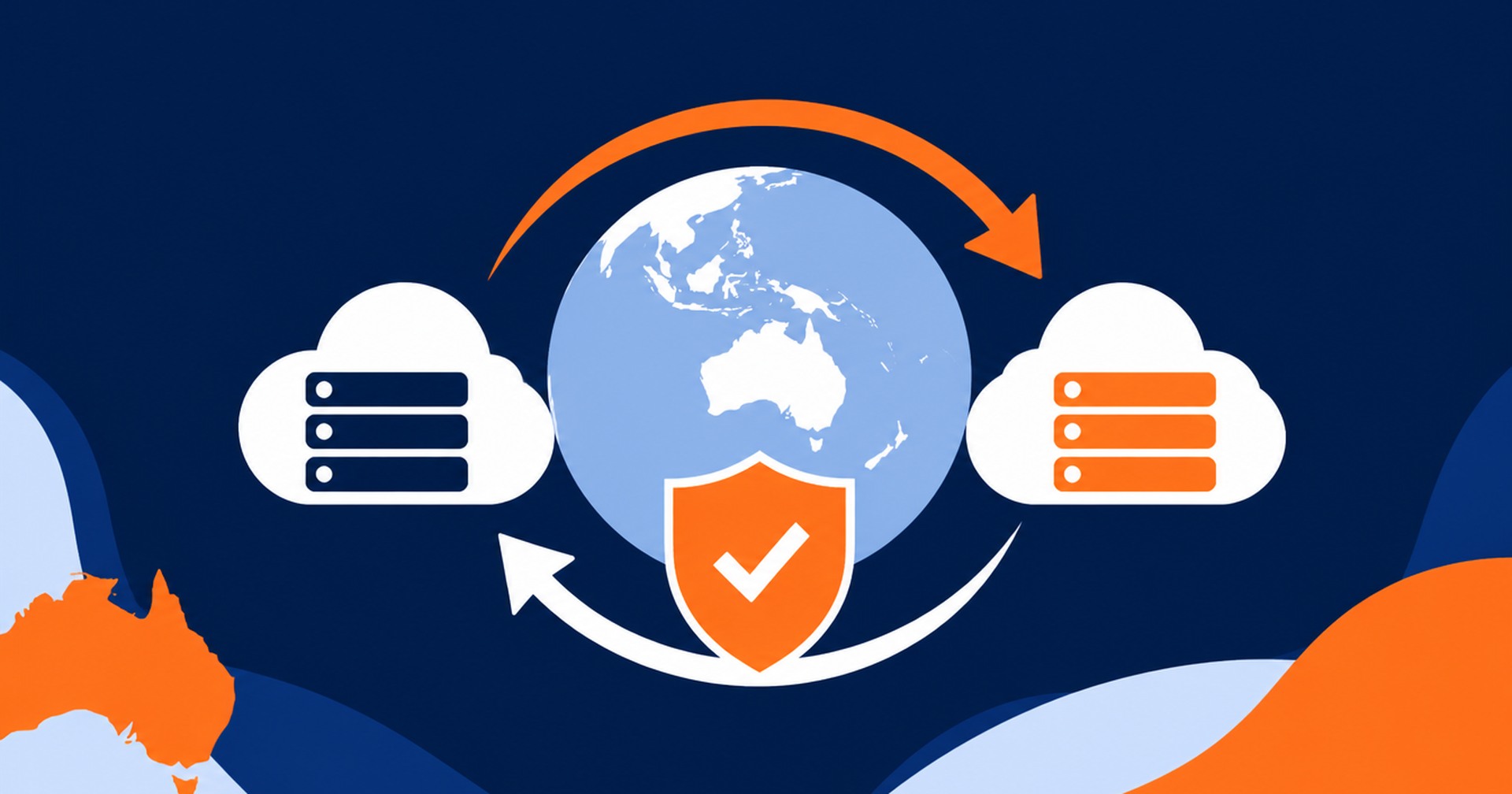

Switching to a new hosting provider can feel overwhelming, especially if you’re worried about downtime, data loss, or breaking your site in the process. The good news is, with the right approach, migrating your website can be smooth and stress-free. This guide walks you through the process step by step so you can safely move your site to a new host.
Before you migrate, research and select a host that fits your website’s needs. Consider:
Performance: Speed, uptime, and server resources.
Support: Availability of 24/7 technical support.
Scalability: Room to grow as your website expands.
Features: Control panel (cPanel, Plesk, etc.), backups, SSL certificates, staging environments.
Once you’ve chosen your provider, sign up and set up your new hosting account.
Never begin a migration without a complete backup of your site. This includes:
Website files: HTML, PHP, media, and other assets.
Database: Often MySQL for WordPress and other CMS platforms.
Most control panels (like cPanel) provide tools for creating backups. Alternatively, you can use FTP/SFTP and phpMyAdmin to manually download your files and export your database.
Now that you have your backups, upload them to your new hosting account.
Connect via FTP/SFTP or use the File Manager in your control panel.
Upload all website files to the correct directory (commonly public_html or www).
Import your database using phpMyAdmin (or a similar tool provided by the host).
If your website uses a database (e.g., WordPress, Joomla, Drupal), you’ll need to update its configuration file with the new database details:
Database name
Database user
Database password
Database host (often localhost, but check with your provider)
For example, in WordPress, this information is stored in the wp-config.php file.
Before pointing your domain to the new host, test your site. Most providers give you a temporary URL or IP address. Visit your site using that address to confirm:
Pages load correctly.
Images, plugins, and scripts work as expected.
Forms and logins function properly.
When everything looks good, it’s time to update your domain’s nameservers to point to your new hosting provider.
Log in to your domain registrar.
Replace the old nameservers with those provided by your new host.
Save changes.
DNS propagation can take up to 24–48 hours worldwide, though it’s often much faster. During this period, some visitors may still see your old server until the changes fully propagate.
After DNS propagation, monitor your site closely:
Test pages, forms, and interactive elements.
Check loading speeds and server performance.
Ensure your SSL certificate is properly configured.
If everything works, you’ve successfully migrated!
Once you’re confident that your site is fully functional on the new server, you can safely cancel your old hosting plan. Make sure you no longer need access to any files or emails before closing the account.
Schedule your migration during low-traffic hours to minimize impact.
Keep both hosting accounts active for a few days as a safety net.
Consider professional migration services if you’re not confident handling it yourself—many hosts offer free migrations.
Migrating your website to a new hosting provider doesn’t have to be complicated. With proper backups, careful testing, and a step-by-step approach, you can make the transition smoothly and avoid downtime. Whether you’re moving for better performance, pricing, or support, this process ensures your website keeps running seamlessly.