

Because of its customizability and flexibility, WordPress is the most popular content management system. While it isn't flawless, it is generally simple to use.
Although WordPress issues can be daunting, most of them are simple to repair. You may perform basic troubleshooting on your own if you know the error and what caused it.
This post will teach you how to diagnose and fix three of the most common WordPress problems
Before making any major changes to your website, create a backup of your files so you have a copy in case anything goes wrong.
If you are unsure how to create a backup, please view our helpful guide in creating a backup via cPanel.
After troubleshooting, always make sure you clear your browser cache. This helps the changes you made reflect instantly on your website, as it is not reading old, saved data from previous views.
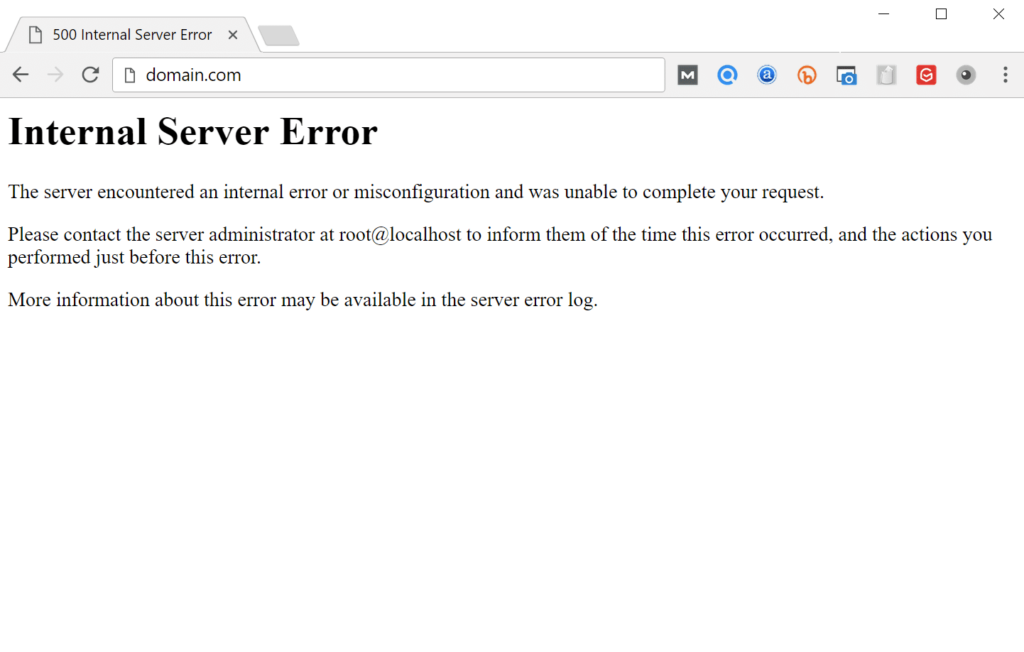
Internal server errors are frequently caused by a corrupted .htaccess file, but they can also be caused by theme or plugin issues.
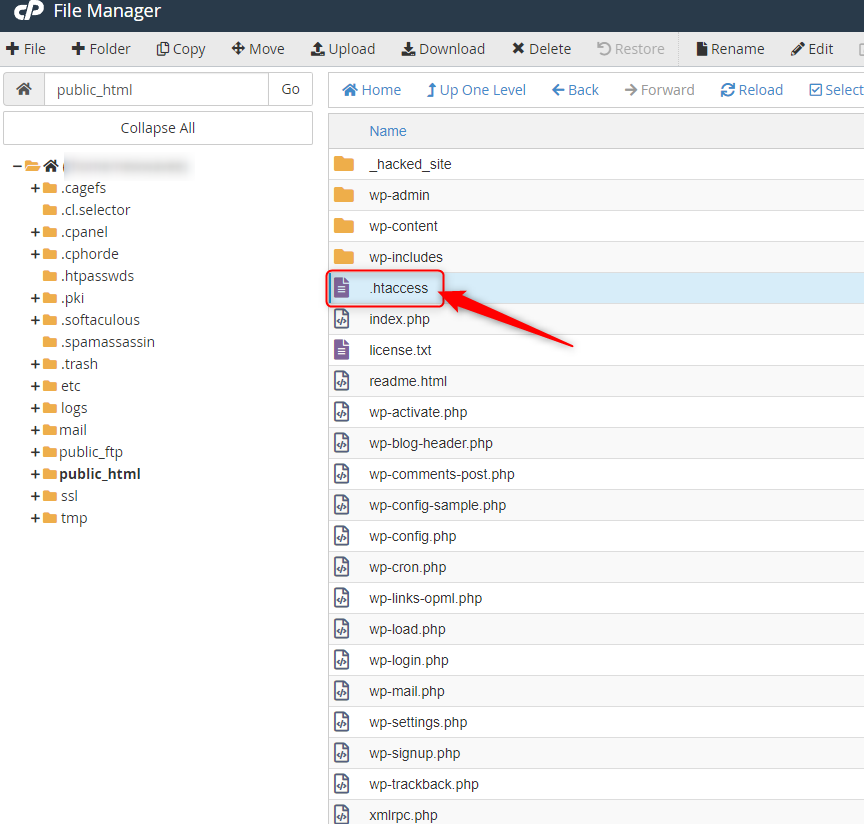
If you do get the internal server issue, try to use the file transfer protocol to get to the website root (FTP) or you can also access the website files via cPanel’s file manager.
Change the name of the .htaccess file (such as .htaccess-old). To see if reloading the website cures the problem, try it. If the problem has been resolved, go to Settings > Permalinks and create a new .htaccess file to reset your permalinks.
# BEGIN WordPress
<IfModule mod_rewrite.c>
RewriteEngine On
RewriteBase /
RewriteRule ^index.php$ - [L]
RewriteCond %{REQUEST_FILENAME} !-f
RewriteCond %{REQUEST_FILENAME} !-d
RewriteRule . /index.php [L]
</IfModule>
# END WordPres
If you've tried the first method and still get an error, it's possible that the issue is due to incompatible or outdated themes and plugins.
To fix your plugins, deactivate them via FTP or via the cPanel file manager. Then, reactivate them one by one until you find the error. Once you find the errant plugin, report it to the developer. You may also try reverting to the previous theme used when the website was still working.
Deactivate your plugins via FTP or the cPanel file manager to fix them. Then, one by one, reactivate them until you identify the issue. If you need assistance with reinstall your plugins, please contact Hosting Australia support. You might also try reverting to the old theme that was in use when the website was still up and running.
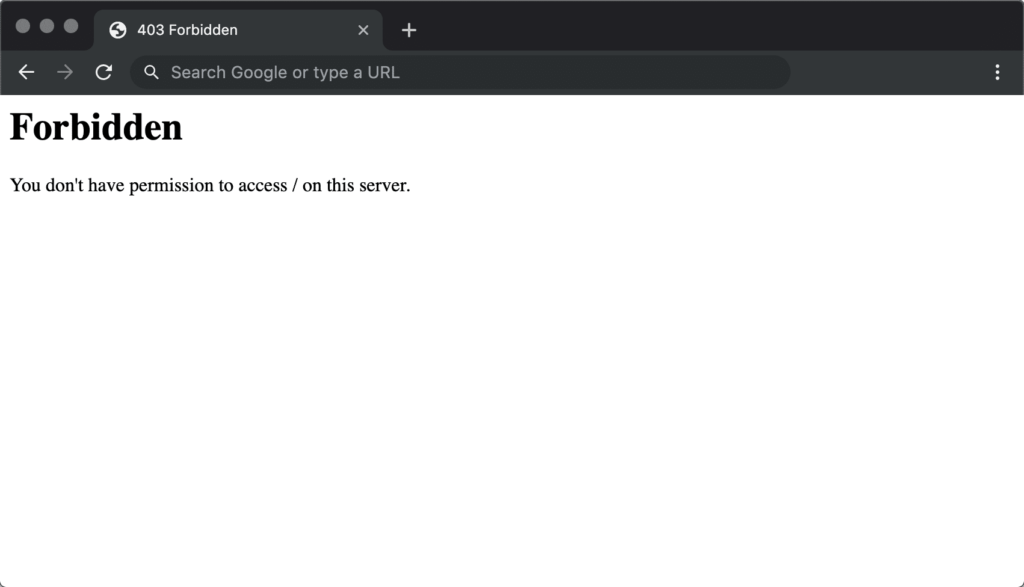
405 forbidden error may be caused by the following:
You may try these fixes for the 34 forbidden errors:
White Screen of Death (WSoD) error may be caused by the following:
You may try these fixes for the WSoD issue:
Try switching the admin side themes, renaming your directory, or modifying the "theme" and "stylesheet" entries in wp options if you get this problem message.
Although WordPress is typically stable, mistakes do occur from time to time. These challenges may appear daunting, but with the help of this guide, you'll be able to get your website up and operating in no time.
The majority of WordPress issues may be avoided by updating plugins and themes, double-checking your .htaccess files, and keeping your website secure.
If you are still having issues after attempting these troubleshooting issues. You can always contact Hosting Australia support via (07) 4914 2433 or alternatively via ticket support@hosting-australia.com.