
As your business expands, so too do the demands on your website. Increasing traffic, larger amounts of data, and the need for more sophisticated security measures all mean that what worked for your website initially may not be sufficient as your business grows. Upgrading your hosting plan is a critical step to ensure that your website can handle increased loads and provide a seamless experience for users. Here are essential tips and strategies to help you effectively scale your website by choosing the right hosting solutions.
1. Evaluate Your Current Hosting Situation
Before making any changes, it's important to assess the current status of your website. Analyze your site's traffic over time, paying attention to peak periods and considering whether you expect further growth in the near future. Look at your current hosting plan and evaluate its limitations. Is your site experiencing slow loading times, downtime, or bandwidth issues? If these problems are occurring frequently, it might be time to consider an upgrade.
2. Understand Different Hosting Options
Knowing the different types of hosting options available will help you make an informed decision about what's best for your growing site. Here’s a brief overview:
Shared Hosting: Best for small websites with low to moderate traffic. As traffic grows, shared resources can become a limitation.
VPS (Virtual Private Server) Hosting: Offers more control and dedicated resources than shared hosting without the cost of a full dedicated server. Suitable for medium-sized businesses.
Dedicated Hosting: Provides maximum control, security, and resources. It is ideal for large businesses with high traffic volumes.
Cloud Hosting: Offers flexibility and scalability by allowing you to easily increase resources during traffic spikes. This is great for businesses with fluctuating traffic.
3. Plan for Future Growth
When considering an upgrade, don't just think about your immediate needs. Look at long-term projections for your business and anticipate the resources you might need in the future. Scalability should be a key factor in your decision. Cloud hosting, for example, can be a great choice because it allows you to scale resources up or down based on real-time demands without needing to switch providers or plans.
4. Assess Performance and Security Features
As traffic increases, your website will need to handle more concurrent users, higher data loads, and potentially more security threats. When upgrading your hosting plan, consider:
Performance: Look for plans that offer better CPU performance, more RAM, and increased disk space. Additionally, technologies like caching and Content Delivery Networks (CDN) can enhance your site’s load times.
Security: Ensure the new plan includes robust security features such as regular backups, malware scanning, and a secure sockets layer (SSL) certificate if not already obtained.
5. Check Service Quality and Support
The quality of customer support can make a significant difference, especially when dealing with complex websites and higher traffic. Ensure the hosting provider offers 24/7 customer support with a proven track record of reliability and customer satisfaction. Read reviews and testimonials to gauge other customers' experiences.
6. Consider the Financial Implications
Upgrading your hosting plan is an investment in your business’s online infrastructure. Compare the costs of different hosting plans and providers, but also consider the potential cost of not upgrading—such as lost sales during downtime or slow loading times. Often, the long-term benefits of a more robust hosting solution will outweigh the initial costs.
7. Make the Transition Smoothly
Once you decide to upgrade, plan the transition carefully to minimize downtime. This may involve setting up the new hosting environment, migrating your website files and databases, and updating DNS records. Many hosting providers offer migration services, so check if this is available and whether it might help make the process smoother.
Conclusion
Scaling your website by upgrading your hosting plan is a crucial step for growing businesses. By assessing your current and future needs, understanding the options available, and choosing a plan that offers the right balance of performance, security, and cost, you can ensure that your website continues to support your business effectively as it grows. Remember, the goal is to provide an optimal experience for your users while accommodating your business’s expanding needs.
Many small businesses struggle to maximize their return on investment (ROI) in web hosting. This article provides 11 proven strategies to help small businesses measure and improve the success of their web hosting efforts. These strategies include setting clear goals and objectives, understanding the target market, creating high-quality content, implementing SEO best practices, using paid advertising wisely, and leveraging email marketing. By measuring and analyzing data and implementing marketing automation, small businesses can maximize their ROI and achieve remarkable growth in their online presence.
Key Takeaways:
Set Clear Goals and Objectives
Setting clear goals and objectives is crucial for small businesses looking to maximize their ROI in web hosting. By defining specific, measurable, achievable, realistic, and time-bound (SMART) goals, businesses can create a clear roadmap for success. These goals should encompass both intermediate objectives, such as increasing awareness and engagement, as well as terminal objectives like driving conversions and signups.
Small business owners can utilize Avinash's measurement model to guide them in developing goals and identifying the key performance metrics (KPIs) that will help measure progress. This model provides an effective framework for tracking and evaluating web hosting success. Regularly updating and revisiting these goals is essential to ensure they remain relevant and challenging, driving continuous growth and improvement.
To further enhance goal-setting efforts, businesses can leverage various tools and technologies to monitor and analyze their website's performance. These tools can provide valuable insights into user behavior, traffic sources, conversion rates, and other metrics, helping businesses make data-driven decisions that optimize their web hosting ROI.
Table: Key Performance Metrics for Measuring Web Hosting Success
| Metric | Definition |
| Conversion Rate | The percentage of website visitors who complete a desired action, such as making a purchase or filling out a form. |
| Bounce Rate | The percentage of visitors who navigate away from a website after viewing only one page. |
| Page Load Time | The time it takes for a webpage to fully load and become visible to the user. |
| Organic Search Traffic | The number of visitors who arrive at a website through unpaid search engine results. |
By establishing clear goals, monitoring key performance metrics, and leveraging data-driven insights, small businesses can measure and improve the success of their web hosting efforts, ultimately maximizing their ROI and achieving remarkable growth in their online presence.
Understand Your Target Market
In order to maximize the ROI of web hosting for small businesses, it is essential to have a deep understanding of your target market. By creating detailed buyer personas, you can gain insights into the demographics, interests, pain points, and online behavior of your audience. These personas help you make informed decisions about where to focus your marketing efforts and how to tailor your messaging to each specific group.
When creating buyer personas, consider factors such as age, gender, location, occupation, and hobbies. Use market research and customer surveys to gather data and identify common characteristics among your target audience. This information will allow you to develop targeted marketing strategies that resonate with your audience and increase the ROI of your web hosting efforts.
By personalizing your content and messaging to address the specific needs and preferences of your target market, you can effectively reach and engage potential customers. Tailored messaging helps you establish a connection with your audience, build trust, and ultimately drive conversions. In addition, understanding your target market enables you to identify the most effective channels and platforms to reach them, ensuring that your marketing efforts are focused and efficient.
Key Takeaways:
| Target Market | Demographics | Interests | Online Behavior |
| Young Professionals | Aged 25-35 Primarily urban Higher education | Career development Travel Health and fitness | Active social media users Regularly consume online content Shop online |
| Small Business Owners | Aged 35-50 Varied locations Entrepreneurs | Business growth Marketing strategies Financial management | Active on professional networking platforms Seeking business solutions online Interested in industry trends |
| Stay-at-Home Parents | Aged 30-45 Varied locations Raising children | Parenting tips Family-friendly activities Home organization | Engage in parenting forums and blogs Research family-related products online Seek recommendations from other parents |
Create High-Quality Content
When it comes to maximizing the ROI of web hosting for small businesses, creating high-quality content plays a crucial role. Content marketing not only helps with SEO efforts but also motivates consumers to engage with the brand and take desired actions. To ensure success, small businesses should focus on providing value to users through authentic content that resonates with their target audience.
One important strategy is to maintain a balance between informative and promotional content. Aim for 80-90% of the content to provide useful information and only 10-20% to be promotional. By doing so, small businesses can establish themselves as thought leaders and build trust with their audience.
By consistently providing high-quality content, small businesses can drive customer engagement and increase their web hosting ROI.
In terms of content types, small businesses should diversify their approach. They can create behind-the-scenes views, customer stories, product development updates, and engaging community content. This variety not only keeps the content fresh and interesting but also helps in catering to different customer preferences.
Table: Types of Content for Small Businesses
| Content Type | Description |
| Behind-the-scenes views | Showcasing the inner workings of the business to provide transparency and build trust. |
| Customer stories | Sharing success stories or testimonials from satisfied customers to inspire and encourage others. |
| Product development updates | Informing customers about new product features, improvements, or upcoming releases to generate excitement and anticipation. |
| Engaging the community | Involving the audience by asking for their opinions, running contests, or featuring user-generated content to foster a sense of belonging and loyalty. |
Furthermore, it is essential for small businesses to align their content with their brand's voice and visual elements. Consistency in tone and style helps in reinforcing the brand identity, making it easily recognizable and memorable.
By consistently creating high-quality content that adds value to users, small businesses can boost customer engagement, enhance their brand reputation, and ultimately increase their web hosting ROI.
Implement SEO Best Practices
Implementing SEO best practices is crucial for improving the ROI of web hosting for small businesses. Search engine optimization (SEO) involves optimizing websites to rank higher in search engine results pages (SERPs) and drive organic traffic. By following SEO best practices, small businesses can increase their visibility, attract more organic traffic, and ultimately maximize their ROI in web hosting.
One important aspect of SEO is understanding the Google algorithm and its focus on quality signals. Google considers factors like time on site, social media engagement, site speed, user experience, technical factors, security, and mobile-friendliness when ranking websites. Therefore, it is essential for small businesses to optimize their websites accordingly.
Mobile-Friendliness and User Experience
With the increasing use of mobile devices, having a mobile-friendly website is crucial. Google prioritizes mobile-friendly websites in its search results, and users are more likely to engage with a website that offers a seamless mobile experience. Small businesses should ensure that their website is responsive and displays properly on various devices.
In addition to mobile-friendliness, user experience plays a significant role in SEO. Websites that provide a positive user experience, with easy navigation, fast loading times, and relevant information, tend to rank higher in search results. Optimizing user experience involves improving site structure, enhancing page speed, and providing valuable content to users.
"Optimizing user experience involves improving site structure, enhancing page speed, and providing valuable content to users."
Keywords and Longtail Keywords
Keywords are another essential component of SEO. Small businesses should conduct keyword research to identify the most relevant and valuable keywords in their industry. These keywords should then be strategically incorporated into website content, including page titles, headings, alt tags, and meta descriptions.
Moreover, longtail keywords can be highly effective in attracting targeted traffic. Longtail keywords are more specific and have lower competition, making it easier for small businesses to rank for them. By targeting longtail keywords, small businesses can increase their chances of ranking higher in search results and attracting organic traffic that is more likely to convert.
| SEO Best Practices for Small Businesses | Description |
| Optimize website for mobile | Ensure your website is mobile-friendly and provides a seamless experience on various devices. |
| Focus on user experience | Improve site structure, enhance page speed, and provide valuable content to enhance user experience. |
| Conduct keyword research | Identify relevant and valuable keywords to target in your website content. |
| Target longtail keywords | Include specific longtail keywords in your content to attract targeted traffic. |
By implementing these SEO best practices, small businesses can improve their website's visibility, attract organic traffic, and ultimately achieve a higher ROI in web hosting.
Use Paid Advertising Wisely
Paid advertising is an invaluable tool for small businesses looking to maximize their web hosting ROI. Online advertising enables us to reach our target audience with precision, ensuring that our message is delivered to the right people at the right time. By leveraging targeted ads, we can increase brand exposure and drive relevant traffic to our website.
When allocating our marketing budget, it is crucial to consider the potential return on investment (ROI) of different advertising channels. Platforms like Google Ads provide cost-effective pay-per-click advertising options, allowing us to optimize our ad spend and maximize our ROI. Through careful ad optimization and continuous monitoring, we can reduce wasted spending and improve the performance of our campaigns.
In order to make the most of our paid advertising efforts, it is essential to create dedicated landing pages that align with our ads. This ensures a seamless user experience and improves conversion rates. By designing landing pages that are visually appealing, easy to navigate, and contain clear call-to-action buttons, we can guide potential customers towards completing their desired actions, such as making a purchase or filling out a contact form.
By using paid advertising wisely and optimizing our landing pages, we can drive targeted traffic to our website and achieve a higher web hosting ROI. With the right approach, online advertising can be a powerful tool in our marketing arsenal, helping us to grow our small business and reach our goals.
A website marketing strategy plays a crucial role in the success of small businesses in Australia. It allows businesses to connect with potential customers, attract, engage, and convert browsers into buyers. Creating a powerful website marketing strategy can be challenging, but by following a step-by-step process, small businesses can achieve their goals. This includes conducting thorough research to understand themselves and their target customers, auditing their website to ensure it delivers a positive user experience, leveraging the power of Google to drive targeted traffic, and creating high-quality content that resonates with their audience. It's important to optimize the website for search engines with the right keywords, focus on producing valuable and relevant content, and utilize social media and email marketing to connect with the audience effectively.
Key Takeaways:
Step 1: Research: Know Yourself and Your Customer
Conducting comprehensive research is the first step in creating a successful website marketing strategy. As small businesses, it's essential to understand what sets us apart from our competitors and identify our unique selling proposition (USP). By researching our target customers, we can gain valuable insights into their wants, needs, and preferences. This knowledge will help us craft a marketing strategy that effectively reaches and engages our customers.
Market research plays a crucial role in understanding our industry and identifying trends that can impact our business. By staying informed about our competitors, we can analyze their strategies, identify gaps in the market, and differentiate ourselves. This competitive analysis allows us to position our business effectively and tailor our marketing messages to stand out.
Knowing our business goals and understanding our target customers is the foundation of a successful website marketing strategy. With thorough research and analysis, we can develop a strategy that speaks directly to our audience, addresses their pain points, and delivers results.
Benefits of Step 1: Research
Example Quotes:
"Research is the backbone of any successful marketing strategy. It helps us understand our customers, our industry, and our competitors. With these insights, we can create targeted and impactful marketing campaigns that resonate with our audience."
"By conducting thorough research, we can uncover opportunities and gaps in the market. This knowledge allows us to differentiate ourselves, position our business effectively, and gain a competitive edge."
| Research Steps | Purpose |
| Identify unique selling proposition (USP) | To differentiate ourselves from competitors |
| Understand target customers | To tailor marketing messages and meet their needs |
| Analyze industry trends and competitors | To identify opportunities and gaps in the market |
| Position the business effectively | To stand out and attract the right customers |
By conducting thorough research and gaining insights into our business, industry, target customers, and competitors, we can lay a strong foundation for our website marketing strategy. This knowledge will guide our decision-making process and ensure that our marketing efforts are focused, targeted, and effective.
Step 2: Audit Your Website
Auditing the website is a critical step in crafting a winning website marketing strategy. A user-friendly website design and navigation play a crucial role in delivering a positive user experience and building trust with potential customers. By ensuring that your website is accessible, visually appealing, and trustworthy, you can create a compelling online presence that resonates with your target audience.
Evaluating Website Design and Navigation
When auditing your website, it's essential to assess its design and navigation elements. A visually appealing design with a cohesive color scheme, well-chosen fonts, and high-quality images can capture visitors' attention and lend credibility to your brand. Additionally, intuitive navigation allows users to find the information they need quickly and easily, enhancing their overall experience on your website.
Consider evaluating the placement and visibility of key elements such as your logo, menu options, search bar, and contact information. Ensuring that these elements are easily accessible can help visitors navigate your site effortlessly and encourage them to engage with your business.
Ensuring Mobile Optimization and Fast Loading Speeds
In today's digital landscape, mobile optimization is crucial. With a growing number of users accessing websites on their smartphones and tablets, it's essential to ensure that your website is responsive and displays correctly across all devices. By offering a seamless experience on mobile, you can cater to a broader audience and increase your chances of converting visitors into customers.
Furthermore, website loading speed is a critical factor in user satisfaction. Slow-loading websites can frustrate users and drive them away. To enhance loading speeds, consider optimizing image sizes, minimizing the use of plugins, and leveraging browser caching techniques. These optimizations can improve your website's performance, keeping visitors engaged and reducing bounce rates.
| Key Elements to Assess during Website Audit | Actions to Enhance User Experience |
| Website design and color scheme | Ensure visually appealing and cohesive design elements |
| Navigation structure | Make navigation intuitive and easily accessible |
| Responsiveness and mobile optimization | Ensure the website displays correctly on all devices |
| Loading speed | Optimize images and minimize plugins for faster page loading |
| Trustworthiness indicators (security certificates, customer testimonials) | Showcase trust elements to build credibility and instill confidence |
Building Trust with Website Trustworthiness Indicators
Trustworthiness is a critical factor for online success. Incorporating trust indicators on your website can help build credibility and establish a strong foundation for customer relationships. Consider elements such as security certificates, customer testimonials, verified badges, and privacy policies to assure visitors of the safety and reliability of your website.
During the website audit, assess the presence and positioning of trust indicators on your website. Placing them strategically can boost visitors' confidence in your brand and increase the likelihood of them engaging with your business.
By auditing your website, you can identify areas for improvement and ensure a user-friendly experience that aligns with your marketing goals. Take the time to assess design, navigation, mobile optimization, loading speed, and trustworthiness indicators to maximize the impact of your website marketing strategy.
Step 3: Leverage the Power of Google
Now that we have conducted thorough research and audited our website, it's time to leverage the power of Google to drive targeted traffic. By utilizing effective keyword research, search engine optimization (SEO), and creating high-quality content, we can improve our website's visibility and attract the right audience.
Keyword Research: Targeted Traffic Starts with the Right Keywords
Keyword research is key to understanding what our target audience is searching for and identifying the most relevant keywords to optimize our website. By using tools like Google Keyword Planner or SEMrush, we can discover valuable insights into search volume, competition, and related keywords. This allows us to strategically incorporate these keywords in our website's content, meta tags, and headers, improving our organic rankings and attracting targeted traffic.
Search Engine Optimization: Optimize for Visibility
Optimizing our website for search engines is crucial to ensure that it is not only visible but also easily discoverable by our target audience. By implementing on-page SEO techniques such as optimizing meta titles and descriptions, using header tags, and creating descriptive URLs, we can improve our website's visibility in search engine result pages (SERPs). Additionally, optimizing technical aspects like site speed and mobile responsiveness can enhance the user experience, ultimately leading to higher rankings and increased targeted traffic.
High-Quality Content: Engage and Convert Visitors
Creating high-quality content that resonates with our audience is essential for attracting and engaging targeted traffic. By addressing the needs, challenges, and interests of our target audience through informative blog posts, engaging videos, or valuable downloadable resources, we can position ourselves as industry experts and build trust with our visitors. This not only increases the time users spend on our website but also encourages them to take desired actions, such as making a purchase or subscribing to our newsletter.
While leveraging the power of Google is crucial, it's important to remember that targeted traffic is just the first step. Once we have successfully attracted visitors to our website, our next step is to focus on creating content that captivates and converts them into loyal customers.
| Benefits of Leveraging Google | Key Strategies |
| Increased website visibility | Effective keyword research |
| Higher organic rankings | Search engine optimization |
| Targeted traffic | Optimizing technical aspects |
| Improved user experience | Creation of high-quality content |
Step 4: Create Content that People Love
Content marketing is a powerful strategy that allows small businesses to attract and engage their target audience effectively. By creating targeted content that addresses the specific needs and interests of their customers, businesses can build trust, establish thought leadership, and drive valuable actions. Whether it's informative articles, engaging videos, interactive webinars, insightful ebooks, or visually appealing infographics, the key is to deliver content that people love.
To ensure that your content reaches the right audience, it's important to promote it through social media marketing. Identify the platforms where your target audience gathers and share your content there. Engage with your audience, respond to their comments, and encourage them to share your content with their networks. This not only increases your content's visibility but also helps in building brand awareness and driving website traffic.
Another effective strategy is email marketing. Segment your email list based on demographics, interests, or buying behavior to deliver personalized content directly to your audience's inbox. Automate the process to send timely and targeted messages, such as promotions, product updates, or newsletters. By nurturing leads and building customer relationships through email marketing, you can turn prospects into loyal customers.
In conclusion, content marketing, combined with social media marketing and email marketing, plays a crucial role in the success of small businesses. By creating targeted content that resonates with your audience, promoting it strategically, and delivering personalized messages, you can build lasting relationships, drive website traffic, and achieve your business goals.
Welcome to the world of web hosting! If you're a beginner looking to set up your own website, we understand that the process can seem daunting. But fear not, because this comprehensive guide is here to demystify WordPress hosting and help you get started on the right foot.
Create an image of a beginner's guide to web hosting that is easy to follow and understand, with colorful graphics and simple explanations. Use icons and symbols to represent different aspects of web hosting, such as disk space, bandwidth, security, and performance. Incorporate elements of WordPress into the design, such as the familiar logo or color scheme. Use contrasting colors and bold lines to make the image eye-catching and memorable.
When it comes to web hosting, WordPress is a popular choice due to its user-friendly interface and vast community support. In this guide, we'll walk you through every step of the process, from selecting a hosting provider to designing and managing your website.
Key Takeaways:
Understanding the Basics of Web Hosting
Before you venture into the world of web hosting, it's essential to grasp the basics. Web hosting is the service that allows your website to be accessible on the internet. It involves several steps, from choosing a hosting provider to going live with your website.
To get started with web hosting, you need to select a hosting provider that suits your needs. Consider factors like reliability, customer support, pricing, and features offered. Hosting Australia provides a number of flexible options for hosting
Once you've chosen a hosting provider, you'll need to register a domain. A domain is your website's address on the internet, so choose one that aligns with your brand or website purpose. You can register a domain through a domain registrar or your hosting provider.
After registering your domain, you'll need to set up your hosting account. Provide the necessary details and access your hosting account. This is where you'll design and customize your website. You can use website builders or content management systems like WordPress to create your website with ease.
The Basics of Web Hosting
| Aspect | Description |
| Web Hosting | Service that allows your website to be accessible on the internet. |
| Choosing a Hosting Provider | Selecting a reliable hosting provider based on factors like support, pricing, and features. |
| Registering a Domain | Getting a unique website address through a domain registrar or hosting provider. |
| Setting Up Your Account | Providing necessary details and accessing your hosting account to design and customize your website. |
Understanding the basics of web hosting is crucial for beginners. It sets the foundation for your online presence and ensures a smooth and successful website creation process. With this knowledge, you'll be well-equipped to take the next steps in setting up your website.
Choosing the Right Hosting Provider
When it comes to choosing a web hosting provider as a beginner, there are several factors to consider. Reliability is crucial to ensure that your website stays up and running without any downtime. Look for hosting providers that offer a high uptime guarantee, typically around 99.9%.
Customer support is another important aspect, especially for beginners who may encounter technical difficulties. A hosting provider with 24/7 customer support, preferably through live chat or phone, can provide you with prompt assistance whenever you need it.
Pricing is also a key consideration. As a beginner, you may want to look for affordable hosting options that offer value for money. Compare the pricing plans of different hosting providers and consider any additional features or resources they offer within those plans.
Registering Your Domain
Registering a domain is a crucial step in establishing your online presence. Your domain serves as the unique address for your website on the internet. It is important to choose a domain name that reflects your brand or website purpose. Consider using relevant keywords in your domain to improve search engine visibility. For example, if you are a photography business in Australia, a domain like www.hosting-australia.com could be a suitable choice.
You can register a domain through a domain registrar or your chosen hosting provider. Domain registrars specialize in managing domain registrations and provide a wide range of domain name options. Hosting providers often offer domain registration as part of their services, providing convenience and seamless integration when setting up your website.
When registering your domain, it is essential to consider enabling privacy protection. Privacy protection ensures that your personal contact information, such as your name, address, and phone number, is not publicly accessible in the domain's WHOIS database. This helps protect your privacy and prevent unsolicited contacts or spam.
Setting Up Your Account and Designing Your Website
Once you have chosen a hosting provider, it's time to set up your account and start designing your website. Here are some key steps to guide you through this process:
Step 1: Account Setup
After signing up with your chosen hosting provider, you will need to provide some necessary details to set up your account. This may include your personal information, payment details, and any specific preferences you have for your hosting plan.
Step 2: Accessing Your Hosting Account
Once your account is set up, you will be provided with login credentials to access your hosting account. This will typically involve a username and password combination. Keep these credentials secure and easily accessible for future reference.
Step 3: Designing Your Website
Now comes the exciting part – designing your website. Depending on your technical skills and preferences, you have a few options. One popular choice is using a website builder provided by your hosting provider. Website builders often have user-friendly interfaces and pre-designed templates, making it easier to create a professional-looking website without extensive coding knowledge.
If you prefer more customization and control over your website's design, you can opt for a content management system (CMS) like WordPress. With WordPress, you can choose from a vast selection of themes and plugins to create a unique and functional website that suits your needs.
Remember to pay attention to usability, mobile responsiveness, and aesthetics as you design your website. Make sure it is easy for visitors to navigate and interact with your site across different devices. Additionally, ensure that your website reflects your brand's identity and provides a visually appealing experience for your users.
Table: Key Factors to Consider when Designing Your Website
| Factors | Description |
| Usability | Create an intuitive and user-friendly interface for smooth navigation. |
| Mobile Responsiveness | Ensure your website displays properly on different devices, including smartphones and tablets. |
| Aesthetics | Choose visually appealing colors, fonts, and graphics that align with your brand or website theme. |
| Content Organization | Structure your content in a logical and easily consumable manner for your visitors. |
| SEO Optimization | Implement proper SEO techniques to improve your website's visibility in search engines. |
With your account set up and your website design underway, you are one step closer to launching your online presence. In the next section, we will discuss testing and securing your website to ensure its optimal functionality and protection against potential threats.
Testing and Securing Your Website
Once you have designed your website, it is crucial to thoroughly test its functionality, links, and overall performance. Testing ensures that your website is user-friendly, responsive, and functions properly across different devices and browsers. It is essential to provide your visitors with a seamless browsing experience.
Functional Testing
Functional testing involves checking if all the features and functionalities on your website work as intended. This includes testing forms, buttons, navigation menus, search functionality, and any interactive elements. Make sure that all links are working correctly and lead to the intended pages. Test different scenarios to ensure that your website handles user input accurately.
Performance Testing
Performance testing evaluates the speed and responsiveness of your website. It is important to optimize your website's loading time, as slow-loading pages can lead to a high bounce rate. Use tools like Google PageSpeed Insights or GTmetrix to measure your website's performance and identify areas for improvement. Optimize images, minify code, and leverage browser caching to enhance your website's speed.
Security Testing
Securing your website is of utmost importance to protect it from potential threats and vulnerabilities. Install an SSL certificate to encrypt data transmitted between your website and its visitors, ensuring a secure browsing experience. Regularly update your website's software, plugins, and themes to prevent security breaches. Implement strong passwords, enable two-factor authentication, and use security plugins or firewalls to fortify your website's defenses against malicious attacks.
| Testing Checklist | Description |
| Functional Testing | Check if all features and functionalities are working as intended |
| Link Testing | Ensure all links are functioning properly and lead to the correct pages |
| Performance Testing | Evaluate website speed and optimize loading time |
| Responsive Testing | Test website across various devices and browsers to ensure responsiveness |
| Security Testing | Implement measures to protect your website from security threats and vulnerabilities |
By thoroughly testing your website and implementing robust security measures, you can provide your visitors with a seamless and secure browsing experience. Regularly monitor and update your website to ensure optimal performance and protection against potential risks.
Conclusion
Building and managing a website can be a complex process, but with the right guide, it becomes easier. By understanding the basics of web hosting, choosing the right hosting provider, registering your domain, setting up your account, designing your website, testing and securing it, you can create a successful online presence.
Remember to regularly update and monitor your website's performance for optimal results. This includes checking for any broken links, optimizing your website for speed and mobile responsiveness, and implementing security measures such as SSL certificates, strong passwords, and security plugins or firewalls.
Web hosting plays a crucial role in the success of your website. It determines how fast your website loads, how secure it is, and how easily it can be accessed by your visitors. So, take the time to choose a reliable hosting provider that offers excellent customer support, competitive pricing, and robust features to meet your needs.
Choosing the right hosting plan is crucial for optimizing your WordPress experience. There are different types of hosting plans available, such as shared, VPS, dedicated, and managed WordPress hosting. Each option has its own benefits and considerations that need to be taken into account. It's important to evaluate your website's needs in terms of traffic volume, functionality, and budget to make an informed decision. Managed WordPress hosting can provide additional support and optimization for your site, while shared hosting may be a more affordable option. Consider your specific requirements and choose a hosting plan that best fits your needs.
Key Takeaways:
The Importance of Choosing the Right Hosting Plan
Choosing the right hosting plan is crucial for the success of your website. A reliable hosting provider ensures high uptime, fast server response times, and excellent customer support. It's important to consider factors such as uptime guarantees, server locations, and customer reviews when selecting a hosting provider. Additionally, affordable hosting options are available to meet various budget requirements. Research different WordPress hosting providers to find the one that offers the best combination of reliability, affordability, and support.
When it comes to your website, reliability is key. You want to ensure that your site is always up and running, with minimal downtime. Choosing a hosting provider that offers high uptime guarantees is essential. This means that your website will be accessible to your visitors 24/7, without any interruptions. Additionally, fast server response times are important for a smooth user experience. A hosting provider with servers located close to your target audience can help improve the loading speed of your website.
Customer support is another important factor to consider. You want to choose a hosting provider that has a reputation for excellent customer service. In case you encounter any technical issues or have questions about your hosting plan, you can rely on their support team to assist you. Reading customer reviews can give you insights into the level of support provided by different hosting providers.
| Factors to Consider | Description |
| Uptime guarantees | Ensure your website is accessible to visitors without interruptions |
| Server locations | Choose a hosting provider with servers located close to your target audience for faster loading times |
| Customer reviews | Read reviews to gauge the level of support provided by hosting providers |
Affordability is also a key consideration when choosing a hosting plan. Fortunately, there are hosting providers that offer affordable options without compromising on reliability. It's important to find a balance between cost and quality. Evaluate the features and resources offered by different hosting providers to ensure they meet your website's needs within your budget.
Factors to Consider When Choosing a Hosting Plan
When selecting a hosting plan for your WordPress site, there are several important factors that you need to consider. These factors will help ensure that you choose a hosting plan that meets your specific needs and delivers the performance and reliability you require. Take the time to evaluate the following:
By carefully considering these factors, you can make an informed decision when choosing a hosting plan that suits your specific needs.
Table: Key Factors to Consider When Choosing a Hosting Plan
| Factors | Considerations |
| Traffic volume and functionality | Assess expected traffic volume and functionality requirements to determine necessary resources and scalability. |
| Support and customer service | Ensure hosting provider offers responsive and helpful support channels. |
| Features and resources | Research and compare hosting packages to find ones that offer required features and resources. |
| Price and budget | Determine budget and compare pricing of different hosting plans. |
Optimizing Your WordPress Site for Better Performance
To optimize your WordPress site for better performance, there are several strategies that you can implement. Start by choosing a hosting plan that provides the necessary resources for your site's needs. Keep your WordPress site updated by regularly applying updates to WordPress core, themes, and plugins. This ensures that your site is running efficiently and securely.
Additionally, optimize your images by compressing and resizing them before uploading to your site. Use a content delivery network (CDN) to improve website loading times by serving content from servers located closer to your visitors. Minimize HTTP requests by reducing the number of resources requested by the browser. Use caching to store frequently accessed data and improve website speed. Finally, optimize your database by cleaning up unused tables and optimizing queries. These strategies combined will help improve the performance of your WordPress site.
| Optimization Strategy | Description |
| Choose the right hosting plan | Ensure your hosting plan provides adequate resources for your site's needs |
| Keep your site updated | Regularly apply updates to WordPress core, themes, and plugins |
| Optimize images | Compress and resize images before uploading to your site |
| Use a content delivery network (CDN) | Serve content from servers closer to your visitors to improve loading times |
| Minimize HTTP requests | Reduce the number of resources requested by the browser |
| Use caching | Store frequently accessed data to improve website speed |
| Optimize your database | Clean up unused tables and optimize queries |
By following these optimization strategies, you can ensure that your WordPress site performs at its best, providing a fast and seamless experience for your visitors.
A bird's eye view of a lineup of small, colorful boxes labeled with different budget-friendly WordPress hosting plans. Each box is equal in size and arranged in a neat row on a white background. The boxes vary in color and have minimal design elements, such as basic icons representing key features of each plan. The overall tone is professional and minimalist, emphasizing affordable options for users looking for reliable hosting solutions for their WordPress site.
The Role of a Lightweight WordPress Theme
When it comes to optimizing your WordPress site for performance, choosing a lightweight theme plays a crucial role. A lightweight theme is designed to prioritize speed and efficiency, reducing the size of CSS and JavaScript files and minimizing server requests. This has a direct impact on your website's loading speed and overall user experience.
By selecting a lightweight WordPress theme, you can greatly improve website speed and ensure a smooth browsing experience for your visitors. These themes are optimized to prioritize the essential features and functionalities, avoiding unnecessary bloat that can slow down your site.
There are several popular lightweight WordPress themes available, such as Astra, GeneratePress, and Schema. These themes offer a balance between design flexibility and performance optimization. When choosing a lightweight theme, consider the specific design and functionality requirements of your site, and select one that best aligns with your needs.
Benefits of Lightweight Themes:
| Benefits | Description |
| Improved Loading Speed | Lightweight themes prioritize speed, resulting in faster loading times. |
| Enhanced User Experience | Faster loading speeds provide a smoother browsing experience for visitors. |
| Efficient Resource Utilization | Lightweight themes use minimal resources, reducing strain on servers. |
| Better SEO Performance | Fast-loading websites tend to rank higher in search engine results. |
| Compatibility with Plugins | Lightweight themes often work seamlessly with various WordPress plugins. |
By choosing a lightweight WordPress theme, you can significantly improve the performance and speed of your site. Consider the benefits and choose a theme that aligns with your overall website goals and objectives.
Monitoring Your Website's Performance
Monitoring your website's performance is crucial for maintaining optimal speed and user experience. By regularly analyzing your site's performance, you can identify any issues that may be impacting its speed and take proactive measures to address them. There are various tools available that can help you monitor your website's performance and provide valuable insights on how to improve it.
One such tool is Google PageSpeed Insights, which analyzes your site's loading speed and provides suggestions for improvement. GTmetrix is another popular tool that offers detailed reports on your site's performance, including load time, page size, and the number of requests. Additionally, Pingdom can help you monitor your site's uptime, alerting you if there are any issues.
Regularly monitoring your website's performance allows you to identify and fix any performance issues before they impact your visitors' experience. By taking proactive measures to optimize your site's speed and responsiveness, you can ensure that your WordPress site delivers the best user experience possible.
Table: Website Performance Monitoring Tools
| Tool | Description | Key Features |
| Google PageSpeed Insights | A tool provided by Google that analyzes your site's performance and provides suggestions for improvement. | - Analyzes website speed and performance - Provides actionable insights and recommendations - Measures mobile and desktop performance |
| GTmetrix | A tool that provides detailed reports on your site's performance, including load time, page size, and requests. | - Measures website performance metrics - Offers insights and recommendations for improvement - Provides historical performance data |
| Pingdom | A tool that monitors your site's uptime and alerts you if there are any issues. | - Monitors website uptime and performance - Sends alerts in case of downtime or performance degradation - Provides detailed performance reports |
Using these tools, you can gain valuable insights into your website's performance and take the necessary steps to optimize it. Regular monitoring allows you to track your site's speed, uptime, and overall performance, ensuring that your visitors have a seamless browsing experience. By addressing any issues promptly, you can maintain optimal speed and user satisfaction on your WordPress site.
Choosing a Reliable Hosting Provider
When it comes to your WordPress site, choosing a reliable hosting provider is crucial for ensuring its performance and security. A reliable hosting provider offers high uptime, fast server response times, and excellent customer support. But with so many options available, how do you choose the right one?
Firstly, consider the uptime guarantees provided by the hosting provider. Uptime refers to the percentage of time that your website will be up and running. Look for providers that offer a minimum uptime guarantee of 99.9% to ensure that your site is always accessible to visitors.
Secondly, take into account the server locations offered by the hosting provider. The closer the server is to your target audience, the faster your website will load for them. This will help improve user experience and overall site performance.
Lastly, take the time to read customer reviews and testimonials to get an idea of the level of customer support provided by the hosting provider. A responsive and helpful support team can make a big difference if you encounter any issues with your WordPress site.
By choosing a reliable hosting provider that offers high uptime, fast server response times, and excellent customer support, you can ensure that your WordPress site remains secure and performs optimally for your visitors.
Conclusion
In conclusion, choosing the right hosting plan is vital for optimizing your WordPress experience. Consider factors such as traffic volume, functionality, and budget when selecting a plan. Research different hosting providers to find one that offers reliable and affordable options with excellent customer support.
Implement optimization strategies such as keeping your site updated, optimizing images, and using a content delivery network. Minimize HTTP requests, leverage caching, and optimize your database to improve website speed. Additionally, selecting a lightweight WordPress theme can greatly enhance your site's performance.
Regularly monitor your website's performance using tools like Google PageSpeed Insights, GTmetrix, and Pingdom. This allows you to identify and address any performance issues promptly, ensuring your site remains fast and responsive.
Choose a reliable hosting provider that can offer high uptime, fast server response times, and exceptional customer support for your WordPress site. By following these steps, you can optimize your WordPress site for speed, security, and overall performance.
WordPress security is a critical concern for all website owners. With thousands of websites being blacklisted every day for malware and phishing, it's essential to implement the best practices for securing your WordPress blog. This guide will provide you with actionable steps and insights into WordPress security, including the importance of keeping WordPress updated, using strong passwords, and the role of web hosting in protecting your site.
Key Takeaways
Why WordPress Security is Important
The security of your WordPress site is of utmost importance in order to protect your website from hackers and prevent malware attacks. Security breaches can lead to data theft, the distribution of harmful malware, and even ransomware attacks. Not only can these breaches cause significant damage to your website and reputation, but they can also result in legal and financial consequences for your business.
In addition to protecting your own information, it is essential to consider your visitors' expectations. Internet users today are increasingly aware of the importance of online security, and they expect websites to provide a safe browsing experience. A secure website builds trust and credibility with your audience, increasing the likelihood of return visits and conversions. Furthermore, search engines like Google prioritize secure sites in their rankings, meaning that investing in WordPress security measures can also improve your website's visibility and organic traffic.
Protect Your Website from Hackers and Malware
By implementing proper WordPress security measures, you can safeguard your website and protect it from potential threats. This includes regularly updating WordPress, plugins, and themes, as updates often include security patches that address vulnerabilities. It also involves using strong passwords for your admin accounts, limiting login attempts, and enabling two-factor authentication to prevent unauthorized access.
Another key aspect of WordPress security is choosing a reliable web hosting provider. A secure hosting environment ensures that your website is hosted on servers that are protected against common threats and regularly updated with the latest security measures. Managed WordPress hosting, in particular, offers enhanced security features such as automatic backups, regular software updates, and advanced security configurations, providing an additional layer of protection for your site.
| Benefits of WordPress Security | Measures to Protect Your Website |
| 1. Protection against data theft and malware distribution | 1. Regularly update WordPress, plugins, and themes |
| 2. Enhanced trust and credibility with your audience | 2. Use strong passwords and limit login attempts |
| 3. Improved search engine visibility and organic traffic | 3. Enable two-factor authentication |
| 4. Legal and financial consequences | 4. Choose a reliable web hosting provider |
Keeping WordPress Updated
Regularly updating your WordPress installation, plugins, and themes is essential for maintaining a secure website. Updates often include security patches that address vulnerabilities and protect against potential threats. By keeping your WordPress site up to date, you minimize the risk of hacking attempts and ensure the stability of your site.
Updating WordPress is a straightforward process. Once a new version is released, you'll receive a notification in your WordPress dashboard. Simply click on the update button to initiate the update. It's important to back up your site before performing any updates to avoid any potential data loss. Additionally, it's crucial to update your plugins and themes as well. Outdated versions can expose your site to security risks.
To update your plugins, go to the "Plugins" section in your WordPress dashboard. If an update is available, you'll see a notification next to the plugin name. Click on the "Update Now" button to update the plugin. Similarly, for themes, navigate to the "Appearance" section and click on the "Themes" tab. If an update is available for your active theme, you'll see an update notification. Click on the "Update Now" button to update the theme.
| Key Actions | Purpose |
| Regularly update WordPress, plugins, and themes | Address vulnerabilities and protect against potential threats |
| Back up your site before performing updates | Minimize the risk of data loss |
| Update plugins in the "Plugins" section | Ensure plugins are up to date |
| Update themes in the "Appearance" section | Keep your active theme secure |
By prioritizing regular updates, you can strengthen the security of your WordPress site and stay protected against emerging threats.
Passwords and User Permissions
Creating strong passwords and managing user permissions are vital aspects of WordPress security. By implementing best practices in password management and user access control, you can significantly enhance the security of your WordPress site and protect it from unauthorized access.
Strong Passwords
Using strong, unique passwords is essential to prevent unauthorized access to your WordPress site. Avoid using commonly used passwords or personal information that can be easily guessed. Instead, create passwords with a combination of uppercase and lowercase letters, numbers, and special characters. Regularly updating passwords is also recommended to mitigate any potential risks.
Limit Login Attempts
Limiting the number of login attempts can deter hackers from using brute force attacks to gain access to your WordPress site. By setting a limit on the number of failed login attempts, you can effectively block repeated login attempts, making it more difficult for unauthorized users to guess or crack your password.
Two-Factor Authentication
Implementing two-factor authentication adds an extra layer of security to your WordPress login process. This authentication method requires users to provide an additional verification code, usually sent to their mobile device, after entering their password. By enabling two-factor authentication, you can ensure that only authorized individuals with both the password and the verification code can access your WordPress site.
Password Protect wp-admin and Login Pages
Another important security measure is to password protect the wp-admin directory and the login pages of your WordPress site. This additional layer of protection prevents unauthorized access to sensitive areas of your site, such as the WordPress admin panel. Password protecting these pages adds an extra barrier for potential hackers, making it more challenging for them to gain control of your WordPress site.
Table: User Permissions
| User Role | Capabilities |
| Administrator | Full access to all WordPress settings and functionality |
| Editor | Can create, edit, publish, and delete all posts and pages |
| Author | Can create, edit, publish, and delete their own posts |
| Contributor | Can write and edit their own drafts, but cannot publish them |
| Subscriber | Can only manage their profile and leave comments on your site |
Understanding user roles and permissions is crucial for controlling access to your WordPress site. By assigning appropriate user roles to individuals, you can limit their capabilities and ensure that only trusted users have access to critical administrative functions. Regularly review and update user permissions to maintain the security of your WordPress site.
The Role of Web Hosting
When it comes to securing your WordPress site, the choice of web hosting provider is crucial. A reliable and secure web hosting provider plays a significant role in protecting your website from potential threats. With web hosting security being a top priority, it's essential to choose a provider that offers advanced security features and robust infrastructure.
Managed WordPress hosting is an excellent option for ensuring the security of your WordPress site. By opting for managed hosting, you can benefit from automatic backups, regular updates, and enhanced security configurations. These features can significantly reduce the risk of security breaches and provide peace of mind.
The Benefits of Managed WordPress Hosting
Managed WordPress hosting offers several advantages when it comes to website security:
By choosing a secure web hosting provider, such as a reputable managed WordPress hosting service, you can enhance the security of your WordPress site and protect it from potential threats.
Conclusion
Securing your WordPress blog with hosting is of utmost importance to protect your website from hackers and malware. By implementing the best practices outlined in this guide, you can significantly enhance the security of your WordPress site and ensure a safe online presence.
Remember that WordPress security is an ongoing process, and it requires active vigilance. Keep your WordPress installation, plugins, and themes up to date to stay protected against potential threats. Additionally, use strong and unique passwords for your admin, FTP, and hosting accounts. Consider implementing measures like limiting login attempts and enabling two-factor authentication to further enhance your site's security.
Choosing a secure web hosting provider is also crucial. Opt for a reputable company that takes proactive measures to protect their servers and offers advanced security configurations. Managed WordPress hosting can provide automatic backups, regular updates, and enhanced security features to ensure the safety of your website. Prioritize the security of your WordPress site by selecting a web hosting provider with a proven track record in WordPress security.
By following these WordPress security best practices and investing in secure WordPress hosting, you can protect your website from hackers, safeguard your data, and maintain the trust of your visitors. Don't compromise on the importance of WordPress security - prioritize the security of your WordPress blog today for a secure and successful online presence.
Create an image featuring a shield or barrier with a WordPress logo inside, representing the idea of secure hosting.
Key Takeaways
Why WordPress Security is Important
The security of your WordPress site is of utmost importance in order to protect your website from hackers and prevent malware attacks. Security breaches can lead to data theft, the distribution of harmful malware, and even ransomware attacks. Not only can these breaches cause significant damage to your website and reputation, but they can also result in legal and financial consequences for your business.
In addition to protecting your own information, it is essential to consider your visitors' expectations. Internet users today are increasingly aware of the importance of online security, and they expect websites to provide a safe browsing experience. A secure website builds trust and credibility with your audience, increasing the likelihood of return visits and conversions. Furthermore, search engines like Google prioritize secure sites in their rankings, meaning that investing in WordPress security measures can also improve your website's visibility and organic traffic.
Protect Your Website from Hackers and Malware
By implementing proper WordPress security measures, you can safeguard your website and protect it from potential threats. This includes regularly updating WordPress, plugins, and themes, as updates often include security patches that address vulnerabilities. It also involves using strong passwords for your admin accounts, limiting login attempts, and enabling two-factor authentication to prevent unauthorized access.
Another key aspect of WordPress security is choosing a reliable web hosting provider. A secure hosting environment ensures that your website is hosted on servers that are protected against common threats and regularly updated with the latest security measures. Managed WordPress hosting, in particular, offers enhanced security features such as automatic backups, regular software updates, and advanced security configurations, providing an additional layer of protection for your site.
| Benefits of WordPress Security | Measures to Protect Your Website |
| 1. Protection against data theft and malware distribution | 1. Regularly update WordPress, plugins, and themes |
| 2. Enhanced trust and credibility with your audience | 2. Use strong passwords and limit login attempts |
| 3. Improved search engine visibility and organic traffic | 3. Enable two-factor authentication |
| 4. Legal and financial consequences | 4. Choose a reliable web hosting provider |
Keeping WordPress Updated
Regularly updating your WordPress installation, plugins, and themes is essential for maintaining a secure website. Updates often include security patches that address vulnerabilities and protect against potential threats. By keeping your WordPress site up to date, you minimize the risk of hacking attempts and ensure the stability of your site.
Updating WordPress is a straightforward process. Once a new version is released, you'll receive a notification in your WordPress dashboard. Simply click on the update button to initiate the update. It's important to back up your site before performing any updates to avoid any potential data loss. Additionally, it's crucial to update your plugins and themes as well. Outdated versions can expose your site to security risks.
To update your plugins, go to the "Plugins" section in your WordPress dashboard. If an update is available, you'll see a notification next to the plugin name. Click on the "Update Now" button to update the plugin. Similarly, for themes, navigate to the "Appearance" section and click on the "Themes" tab. If an update is available for your active theme, you'll see an update notification. Click on the "Update Now" button to update the theme.
| Key Actions | Purpose |
| Regularly update WordPress, plugins, and themes | Address vulnerabilities and protect against potential threats |
| Back up your site before performing updates | Minimize the risk of data loss |
| Update plugins in the "Plugins" section | Ensure plugins are up to date |
| Update themes in the "Appearance" section | Keep your active theme secure |
By prioritizing regular updates, you can strengthen the security of your WordPress site and stay protected against emerging threats.
Passwords and User Permissions
Creating strong passwords and managing user permissions are vital aspects of WordPress security. By implementing best practices in password management and user access control, you can significantly enhance the security of your WordPress site and protect it from unauthorized access.
Strong Passwords
Using strong, unique passwords is essential to prevent unauthorized access to your WordPress site. Avoid using commonly used passwords or personal information that can be easily guessed. Instead, create passwords with a combination of uppercase and lowercase letters, numbers, and special characters. Regularly updating passwords is also recommended to mitigate any potential risks.
Limit Login Attempts
Limiting the number of login attempts can deter hackers from using brute force attacks to gain access to your WordPress site. By setting a limit on the number of failed login attempts, you can effectively block repeated login attempts, making it more difficult for unauthorized users to guess or crack your password.
Two-Factor Authentication
Implementing two-factor authentication adds an extra layer of security to your WordPress login process. This authentication method requires users to provide an additional verification code, usually sent to their mobile device, after entering their password. By enabling two-factor authentication, you can ensure that only authorized individuals with both the password and the verification code can access your WordPress site.
Password Protect wp-admin and Login Pages
Another important security measure is to password protect the wp-admin directory and the login pages of your WordPress site. This additional layer of protection prevents unauthorized access to sensitive areas of your site, such as the WordPress admin panel. Password protecting these pages adds an extra barrier for potential hackers, making it more challenging for them to gain control of your WordPress site.
Table: User Permissions
| User Role | Capabilities |
| Administrator | Full access to all WordPress settings and functionality |
| Editor | Can create, edit, publish, and delete all posts and pages |
| Author | Can create, edit, publish, and delete their own posts |
| Contributor | Can write and edit their own drafts, but cannot publish them |
| Subscriber | Can only manage their profile and leave comments on your site |
Understanding user roles and permissions is crucial for controlling access to your WordPress site. By assigning appropriate user roles to individuals, you can limit their capabilities and ensure that only trusted users have access to critical administrative functions. Regularly review and update user permissions to maintain the security of your WordPress site.
The Role of Web Hosting
When it comes to securing your WordPress site, the choice of web hosting provider is crucial. A reliable and secure web hosting provider plays a significant role in protecting your website from potential threats. With web hosting security being a top priority, it's essential to choose a provider that offers advanced security features and robust infrastructure.
Managed WordPress hosting is an excellent option for ensuring the security of your WordPress site. By opting for managed hosting, you can benefit from automatic backups, regular updates, and enhanced security configurations. These features can significantly reduce the risk of security breaches and provide peace of mind.
The Benefits of Managed WordPress Hosting
Managed WordPress hosting offers several advantages when it comes to website security:
By choosing a secure web hosting provider, such as a reputable managed WordPress hosting service, you can enhance the security of your WordPress site and protect it from potential threats.
Conclusion
Securing your WordPress blog with hosting is of utmost importance to protect your website from hackers and malware. By implementing the best practices outlined in this guide, you can significantly enhance the security of your WordPress site and ensure a safe online presence.
Remember that WordPress security is an ongoing process, and it requires active vigilance. Keep your WordPress installation, plugins, and themes up to date to stay protected against potential threats. Additionally, use strong and unique passwords for your admin, FTP, and hosting accounts. Consider implementing measures like limiting login attempts and enabling two-factor authentication to further enhance your site's security.
Choosing a secure web hosting provider is also crucial. Opt for a reputable company that takes proactive measures to protect their servers and offers advanced security configurations. Managed WordPress hosting can provide automatic backups, regular updates, and enhanced security features to ensure the safety of your website. Prioritize the security of your WordPress site by selecting a web hosting provider with a proven track record in WordPress security.
By following these WordPress security best practices and investing in secure WordPress hosting, you can protect your website from hackers, safeguard your data, and maintain the trust of your visitors. Don't compromise on the importance of WordPress security - prioritize the security of your WordPress blog today for a secure and successful online presence.
Introduction
WordPress, the world's leading content management system, has revolutionized the way people create websites. Its user-friendly interface and vast array of customization options make it accessible to beginners and powerful for experts. In this article, we'll provide you with a comprehensive guide on how to use WordPress, supplemented with helpful video tutorials for visual learners.
Getting Started: Setting Up Your WordPress Site
a. Choosing a Domain Name and Hosting Provider Selecting a domain name and a reliable hosting provider is the foundation of your WordPress journey. Click here to search for you chosen domain to see if its available..
b. Installing WordPress Follow this link to set up your WordPress site with Hosting Australia.
2. Navigating the WordPress Dashboard
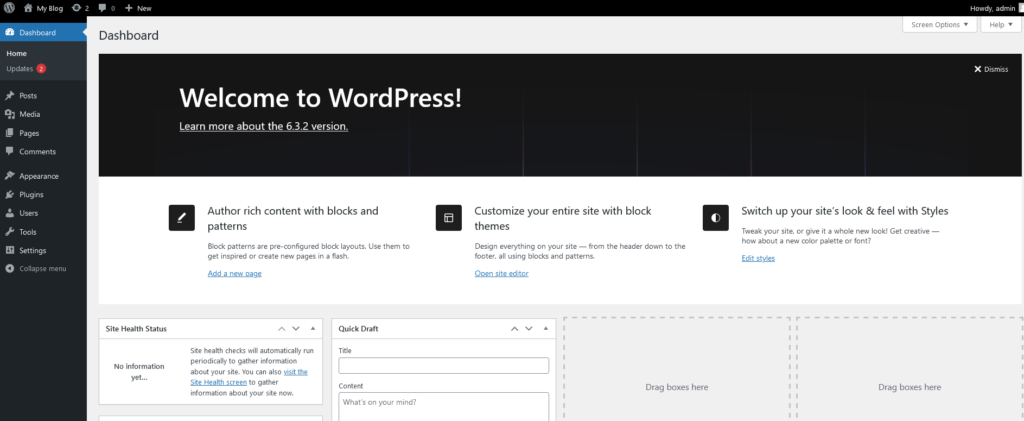
Once your site is live, familiarise yourself with the WordPress dashboard. Login using the URL: https://yourdomain/wp-admin. Login using your username and password then you will see this page.
3. Creating Content: Posts and Pages
a. Writing and Publishing Posts Learn how to create compelling blog posts. Pages are used mainly for the Menu links that go to "PAGES". A post is usually used as articles for your blog. Posts can be assigned to categories so you can show certain categories through certain pages to keep your topics organised. You can display multiple Posts in one page as excerpts and clicking a post link or a READ MORE button will take you to the Post Article. So the links are built in saving you having to add lots of links to a page.
b. Designing Static Pages Master the art of designing static pages such as About Us and Contact. PAGES as mentioned above are the main content of the site and is how you build your site. Generally a page will be build to contain all the content of a topic and can also be used to display all the posts of a category. Uusally the links in your menus will go to a page. Although you can use these links to go to a post. POSTS and PAGES are essentially the same thing. You just use them a little differently.
4. Selecting and Customizing Themes
Explore WordPress themes to find the perfect look for your website.
5. Enhancing Functionality with Plugins
Plugins extend WordPress's functionality.
6. Managing Media
Understanding media management is crucial.
7. Engaging with Your Audience
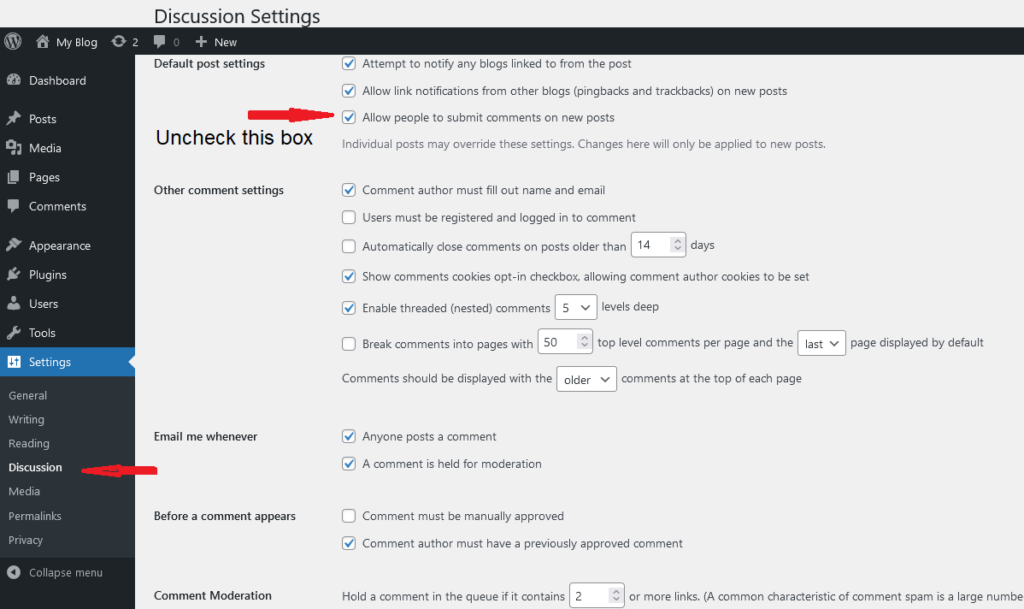
a. Enabling Comments Encourage interaction by enabling comments. NB: Comments can be used to bombard your site with spam. This can lead to hacking if not kept in check. If you don't need comments then you can disable them via the settings and in the Discussion section uncheck "Do Not allow Comments"
b. Social Media Integration Integrate social media seamlessly.
8. Search Engine Optimization (SEO)
Boost your site’s visibility on search engines. SEO is complete separate product to a web development and a specialised skill. There are 2 types. One off SEO where you can add some features in your site to help google find you. Ongoing SEO where you will manage your content and other off-site features such as Google Ads or Social Media marketing. Choose carefully when finding someone to do this because they can promise all sorts of results but can't prove it until your SEO campaign has been going for a few Months. You need to allow a minimum of 3 months to see any results.
9. Regular Maintenance
Ensure your site stays secure and up-to-date.
Conclusion
WordPress empowers you to create a stunning website, and with the help of these video tutorials, you can master it in no time. Remember, practice and exploration are key, so don’t hesitate to experiment with different features and functionalities. Happy WordPressing!
For all of the above you can find and appropriate Video to show you how.
Important factors to ensure the best hosting are Speed, Support, Security. As your site grows you need to be sure your bigger, more popular website can still load fast and allow all large surges of higher traffic.
Hosting services are available in a wide range of prices ranging from a few dollars a month to thousands of dollars. A small business just getting a web presence, a shared hosting service is the best way to start. This gives you all you need regarding disc space, bandwidth and support. Leaving the support and management to the experts.
Virtual Private Server (VPS) is an open for a business that has outgrown shared services. Maybe you need more space or need to run applications that aren’t available on shared server. However you will need to manage it all yourself. After all a VPS is YOUR server so you are responsible for the running and management of the server and your websites. So a high level of knowledge is required.
Hosting prices can vary from just AU$4 / month up to AU$100 / month. This will depend on your needs and what you get for the plan.
What does Hosting and Support Mean?
All Hosting Providers offer similar offerings. Web and Email Hosting, Email Only, DNS Hosting. Basic customer service provides access to email, ticket and phone support.
The main difference is in support. Turnaround time on requests, Ticket Response times, Even just answering the phone. Some service providers will offer 24-hour phone support.
Bear in mind hosting support includes,
1. Server Maintenance and support
2. General troubleshooting and advice
3. Domain and hosting related management
4. Service renewals to ensure you don’t lose your domain or your services go offline.
5. Regular backups (used as a last resort for restores if required)
1. Website maintenance
2. Web development or changes to site
3. IT related issues such as fixing your email client, exporting email
However at Hosting Australia we do provide the above support but it will be charged at a reasonable rate. This means you don’t have to go find a developer to fix or maintain your website.
Managed Services.
Although the above support isn’t included in the normal hosting package, Hosting Australia can help with development and management with our Managed Services Packages. This allows you to leave it all to us. Your site is managed and updated on a regular basis to keep it all up to date and secure. It also includes changes to content and images as required but does not include design changes.
If you don’t want to use a monthly Managed Services Package then we will still support your site as required but quote on an ad hoc basis to work on the site when you need.
Estimate the amount of traffic you expect.
Some plans will include a limit on Bandwidth. This is the amount of traffic coming to your site. Just starting our your site won’t generate a lot of traffic but when it does upgrading your site to a higher level is very easy. Also your site may be seasonal. If your normal traffic is low but when you have an event and promote it you may find that your traffic suddenly spikes for a few weeks before the event and during. So you will need to allow for this and make sure you have enough bandwidth to handle the traffic. Rather than upgrading your hosting package you may just need to use an Add On package for the period of the event.
Where are the Servers?
Server location is important to a lot of people. Having servers overseas can affect your site speed and even more important support level due to time zones. Hosting Australia staff and servers are all in Australia and fully Australian owned.
There are some hosts that promote a simple web builder to instantly build a “great” site. Companies such as WIX, Weebly among others offer this server. What they don’t mention is that once the site is built it is locked to their servers because you are using their site building software. This doesn’t allow you to move your hosting if you find they don’t provide the support or service you expect. This means you need to build a whole new site just to move away from them.
You most probably will prefer the option to move if you need so a portable hosted CMS is the best way to go and your host can help you with migrating your site and email when you pick a new provider.
When launching a new website, there are several steps that you must take to keep it safe. By following some basic security measures, you can save yourself a lot of headaches and trouble. In addition, making sure that your website is secure before you add any content is also important. In this article, we'll cover five of the most important security practices for your new website.
Use a Secure Content Management System CMS
A secure CMS helps keep your website safe from cyber-attacks. Its security features include strict controls over access and the ability to isolate users. To ensure your website's security, only a select group of users can edit, add, or delete content. Administrators should also follow procedures for offboarding unauthorized users. A secure CMS also separates its backend from the front end, which limits the damage in the event of a breach.
When choosing a CMS, you'll want to consider the size of your organization, the number of users, and the level of security you'd like to provide. Another consideration is the variety of digital content your business plans to share. All of this data should be easily indexed by search engines. You'll also want to get input from employees, leadership, the marketing department, and IT staff before you select a CMS.
The main reason CMSes are vulnerable is because most of the software they use is open source. This makes them a prime target for hackers. Additionally, many of these platforms have been vulnerable for a long time because they're not updated frequently. While they have some advantages, they also come with a number of flaws, which makes them a vulnerable target. In addition to this, open source CMSes have a lower degree of accountability than their commercial counterparts.
Control Who Has Access
When you first get a new website, the most important thing is to control who has access to it. You should not give your site administrator access to every feature. The CMS should also allow you to change the permissions of contributors and editors. CMSes generally let you control this. However, you need to be careful about what access each group should have. If you're creating a website for a non-profit, for example, you should set permissions for your readers.
Choose a Secure Reliable Hosting Platform
If you want to start a website for your business, you'll need to choose a secure, reliable hosting platform. Fortunately, there are plenty of options available. Bluehost, for example, offers shared and VPS hosting plans. This company offers blazing-fast SSDs, security monitoring, and 24/7 network security. It also offers a simple management console and one-click deployment tools.
To begin securing your website, you'll need an SSL certificate. An SSL certificate will create an encrypted link between your web server and your customers' browser. This secure link helps protect sensitive data from bad actors. When a customer visits your website, a green padlock will appear in the address bar. Some web hosts provide this security for free, while others charge up to $100 a year.
Before choosing a web hosting plan, compare prices and features. Also, make sure there are no hidden charges or blockages. If you are unsure, consider going with a free trial. This way, you can see whether the plan you select is suitable for your needs. If you like it, you can then choose to purchase the plan. If it's a good fit, you can also upgrade to a premium hosting plan.
As with all things, performance and security are important when it comes to the web hosting platform you choose for your new website. Choose a web hosting provider that understands the risks and has a commitment to keeping your site secure and protected. Your new website should also be protected by an SSL certificate, which means it will be backed up to a distant server in the event of a breach or other attack. You should also choose a web hosting provider that will offer ongoing technical support.
Install High-Grade Security Features
Effective website security requires design efforts across the entire website, including client-side code and server configuration. Besides using SSL, you can also install server-side web frameworks that can enable robust defense mechanisms. Another way to keep your website secure is to implement HTTPS (Hyper Text Transfer Protocol Secure). Using publicly available vulnerability scanner tools can help you identify obvious mistakes that can compromise your website. These vulnerabilities can lead to data theft, identity theft, and even malware infection.
In addition to securing your site against hackers, you should also use secure passwords for all users. Your passwords should be lengthy and contain special characters and numbers, and should not contain any obvious keywords. You should hold yourself and your team accountable for using secure passwords, and encourage everyone to use them. You should also consider offering a bug bounty to encourage people to report security issues. You should also make sure your website uses SSL to protect sensitive data.
Keep Everything Updated
The first step to securing your new website is to keep all of your software and hardware up to date. Companies and software developers constantly release patches and updates to plug security holes. If you don't update your software, you leave yourself vulnerable. Fortunately, most hosts will make it easy for you to update the software on your site. They will also remind you when a new version is available. Keeping everything up to date will help you prevent any website hacking attempts and keep your visitors safe.
Keeping everything up to date is particularly important for databases and applications. These are likely points of entry for hackers, so it is imperative to keep them updated. Additionally, it's important to keep your file structure organized, so you can easily identify changes and remove old files. Keeping everything updated will also save you money in the long run. Here are some other tips for keeping your website up to date:
Ensure that you backup your website on a regular basis. You'll want to ensure that you have off-site backups. Having these backups is essential, especially if there's a problem with your web host's data center. Consider your website as your virtual office - it's a vital part of your business, so you must protect it accordingly. You should also ensure that you regularly update your integrations and third-party applications.
Final Thoughts
After you set up your new website, you should take some basic steps to protect it. These protective measures are the easiest to implement and set up your website reasonably well. Hackers don't manually hack websites, they create bots to sniff out vulnerable sites and do the hacking for them. The bots aren't sentient, but they're programmed to do certain actions. By following these tips, you can secure your new website from hackers.