

Why a Staging Site Makes WordPress Updates Safer
Clicking update in WordPress is easy. Knowing whether the new version will cooperate with your theme, plugins, forms and custom code is the harder part. A staging site gives you a safe place to find out before customers do.
What is a WordPress staging site?
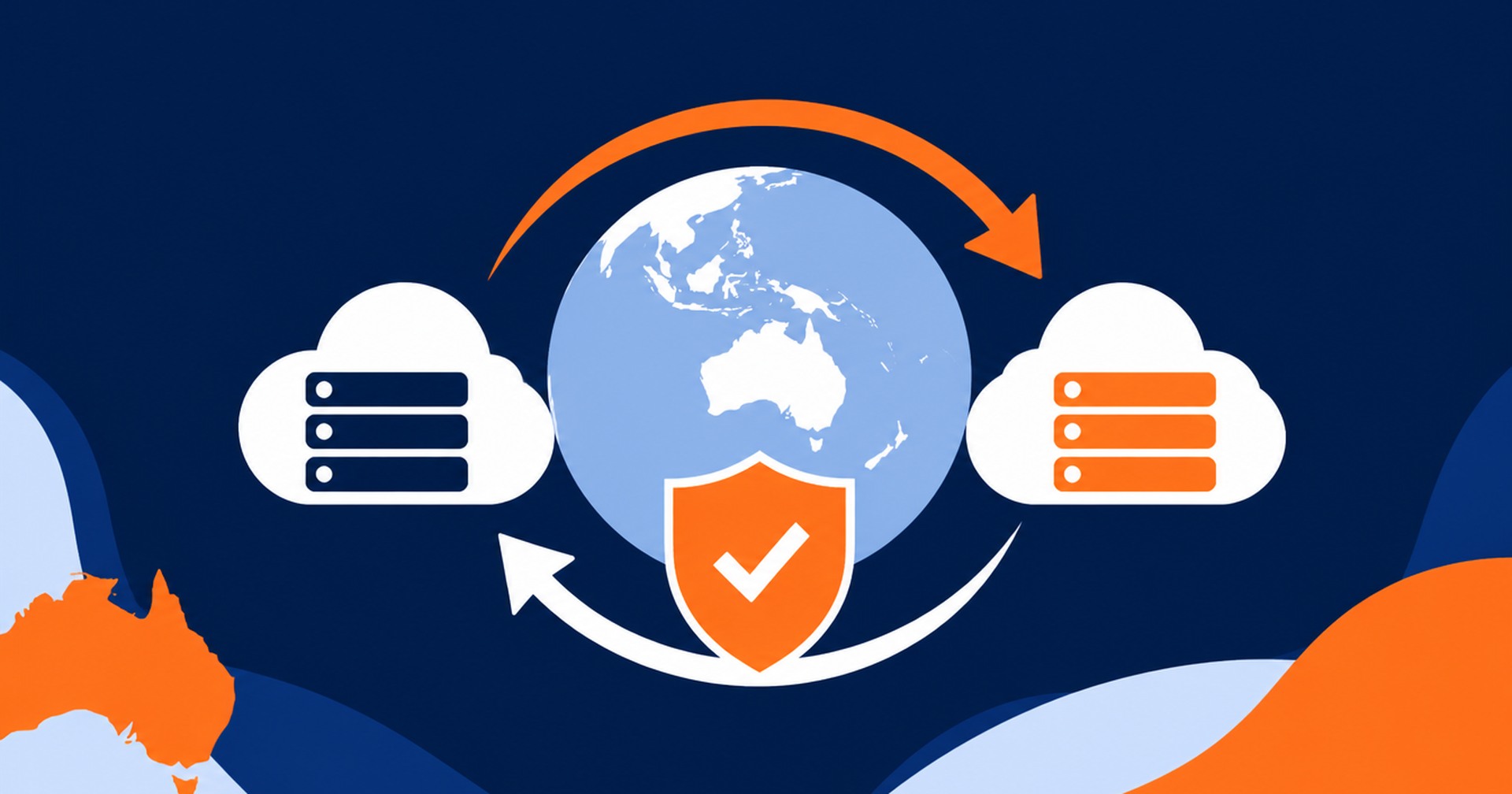
A staging site is a private copy of your live website, also called production. It should reproduce the parts of production that matter for testing: WordPress core, the active theme, plugins, settings, database content and the relevant server configuration. Changes made there do not affect the public site.
Staging is not simply another backup. A backup is the recovery copy you restore after a problem. Staging is the working copy where you deliberately apply updates, inspect the result and fix conflicts. You need both because a successful staging test reduces risk, while a current backup gives you a way back if the production rollout still fails.
Start with a backup, then refresh staging
Before cloning or updating anything, create a current backup of both the database and site files, and confirm how it will be restored. WordPress itself advises backing up the database and files before an upgrade in its Dashboard Updates guidance. Store the recovery details somewhere you can reach even if WordPress admin becomes unavailable.
Next, refresh staging from production so the test reflects the live site rather than an old copy. Record the versions you plan to change and read their release notes for compatibility warnings or required steps. Restrict public access to staging, discourage search engine indexing, and disable anything that could contact real customers or external services.
Test the update as a complete journey
Apply the proposed update set on staging in a controlled order. If a problem appears, updating one component at a time makes the cause easier to isolate. For a tightly coupled stack, such as WooCommerce, its extensions, payment gateways and theme, test the same combination you intend to deploy.
Do not stop when the home page loads. Check the paths that produce enquiries, sales and day-to-day work:
- Open key pages on desktop and mobile, including menus, search, images and logged-in areas.
- Submit forms and verify validation, confirmation messages, email delivery and where entries are stored.
- Test user login, password reset, account editing and role-specific access where relevant.
- For WooCommerce, test product pages, variations, stock, coupons, cart, checkout, payment test mode, shipping, tax and order emails.
- Review WordPress admin for errors, update notices and failed scheduled actions.
- Clear relevant caches and repeat essential checks in a private browser window.
This matches the practical areas in WooCommerce’s official update checklist, which recommends a current backup, staging tests and checks across checkout, payments, shipping, taxes and emails. Include any business-specific integration too, such as bookings, memberships, accounting exports or a customer relationship system.
Protect live orders, enquiries and customer data
A staging database becomes stale as soon as production receives a new order, account, booking, comment or form submission. That is why you should not push the entire staging database back to a busy live site after testing. Doing so can overwrite transactions and customer activity created since the clone.
For an ecommerce or lead-generation site, deploy tested code and configuration selectively. Treat database migrations with particular care, because some updates change database structures as well as plugin files. WooCommerce notes that store data spans both the database and the wp-content folder, so a rollback plan must account for both.
Use payment gateway sandbox or test modes on staging. Disable outgoing customer emails, webhooks, fulfilment connections and scheduled jobs unless they are safely redirected. Limit access to authorised people, remove the staging copy when it is no longer needed, and handle copied personal information under the same privacy and security controls as production.
Plan the production rollout
Once staging passes, choose a lower-traffic maintenance window and tell relevant staff what is changing. Take a fresh production backup immediately before deployment. For a transactional site, briefly pause checkout or other writes so an order cannot arrive halfway through a database change.
Apply the same versions and steps that passed on staging. Avoid adding an untested update because it appeared that morning. Note the start time, changed components and person responsible. After deployment, clear caches and run a short production smoke test covering the home page, a key conversion path, login, forms and checkout where applicable.
Know when to roll back
Set a clear stop point before starting. Roll back if checkout fails, forms stop delivering, critical layouts break, the admin becomes inaccessible, or errors cannot be resolved within the maintenance window. A rollback can mean reverting the changed code, restoring files and database together, or using a provider snapshot. The right method depends on what the update changed.
Do not assume a rollback is safe just because a restore button exists. Know which backup will be used, how long restoration normally takes, who has access, and how you will reconcile any live transactions created after that backup. The WordPress updating guide explicitly points to restoring a backup when an upgrade causes problems.
Make staging part of routine maintenance
Staging turns updates from a hopeful click into a repeatable release process: back up, clone, update, test, deploy, verify and roll back if required. It cannot remove every risk because production traffic and third-party services may behave differently, but it gives you evidence before you change the live site.
If you need an environment and support suited to this workflow, review Hosting Australia’s WordPress hosting options and discuss how staging, backups and restores should work for your site.
The safest update is not the one you postpone. It is the one you test, release carefully and can reverse.

Australian Hosting Support



Newsletter Sign Up