
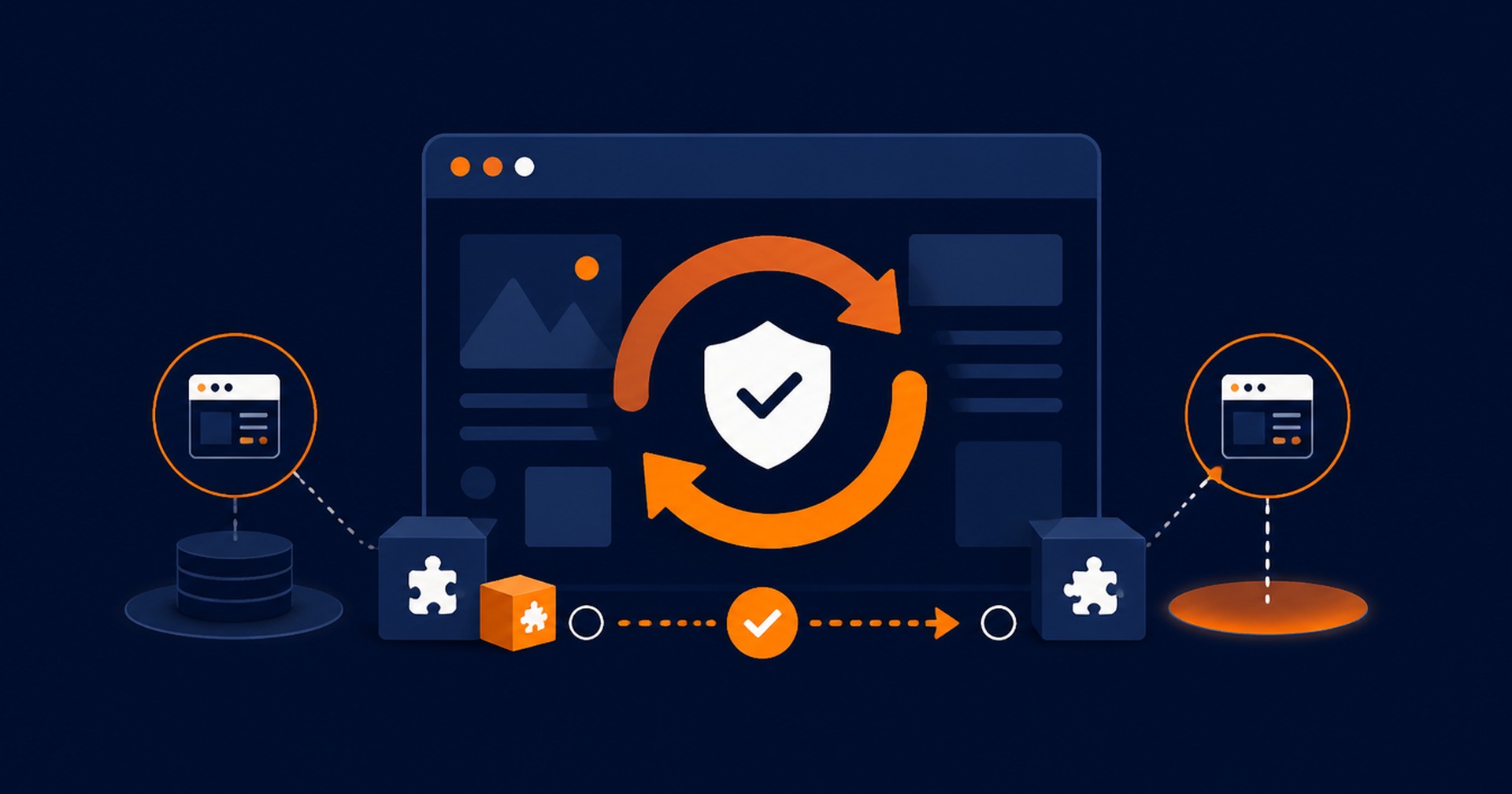
What to Check Before Updating Your WordPress Website
Prepare, update and test without risking the live website
Make WordPress updates a controlled business process
Updating WordPress is an important part of running a business website, but clicking every available update without preparation can create avoidable problems. WordPress core, themes and plugins work together, and a change in one component can affect layouts, forms, payments, integrations or the administration area.
A safe update process does not need to be complicated. It needs a current backup, a clear understanding of the website, sensible timing and a short set of checks afterwards. These steps help a small business keep software current while reducing disruption.
Know what is changing and why
Start by reviewing the available updates rather than treating them as one anonymous batch. Note whether the change applies to WordPress itself, the active theme, a security plugin, a form builder, an ecommerce extension or another part of the site. The closer a component is to an important business function, the more carefully it should be handled.
Read the release information where it is available. A small maintenance release may focus on security or bug fixes, while a larger version can introduce new features and compatibility changes. Check whether the plugin or theme supports your current WordPress and PHP versions. If a component has not been maintained for a long time, updating everything around it may expose an existing compatibility problem.
Remove software that is genuinely unused, but do not deactivate or delete an unfamiliar plugin just because its purpose is not obvious. It may support a form, tracking connection, cache, security control or custom feature. Ask the developer or support provider when ownership is unclear.
Keep a simple inventory of important components and integrations. Include payment gateways, email delivery, booking tools, analytics, customer portals and any connection to another business system. This list becomes the basis for the checks you perform after an update.
Prepare a backup and a rollback path
Create or confirm a current backup before changing the live site. It should cover both website files and the database because WordPress stores content, settings and user information across both. Check when the backup completed, where it is stored and how a restore would be started.
A backup is more useful when the restore process is understood. Confirm who is authorised to restore the site and how to contact them. If the website changes frequently, consider what information could be lost by returning to the backup, such as orders, enquiries, bookings or recently published content.
For a significant update, use a staging environment when one is available. Staging is a separate copy where changes can be tested away from customers. It is especially valuable for online stores, membership sites, heavily customised websites and updates involving several connected plugins.
A staging test should be handled carefully. Prevent the copy from sending real customer emails, processing live payments or being indexed by search engines. Test with suitable non-production details and make sure nobody mistakes the staging site for the public website.
Choose the right time and update in a controlled way
Avoid major updates immediately before a campaign, event, busy sales period or staff handover. Choose a time when someone is available to test the site and respond if a problem appears. For a business-critical website, inform the relevant staff so they know when the work is happening and where to report an issue.
Update in a sequence that makes troubleshooting practical. Applying dozens of unrelated changes at once may save a few clicks but makes it harder to identify the cause of a fault. The right grouping depends on the website, so follow the documented process used by your developer or managed service.
Keep the browser tab open until the update completes. Do not refresh the page or start the same action elsewhere unless the process clearly fails and you understand the recovery steps. Clear the appropriate website and server caches afterwards so visitors receive the current files rather than a mixture of old and new versions.
Updates are only one part of maintenance. Strong unique passwords, multi-factor authentication, limited administrator access and current hosting software also matter. Australian Government cyber security guidance recommends keeping website software and plugins up to date, maintaining backups and controlling access to administrative accounts.
Test the customer journey after the update
Do not finish at the message that says the update succeeded. Open the public website in a fresh browser session and check the pages that matter to customers. Look for missing styling, error messages, broken images and unexpected layout changes on both desktop and mobile.
Submit a test through the contact form and confirm it reaches the expected destination. If the website has ecommerce, bookings or memberships, test the relevant journey without creating a real transaction unless your approved test process requires one. Check login areas, search, navigation and any feature that depends on an external service.
Review the WordPress administration area as well. Confirm that editors can create or update content and that scheduled tasks, backups and security tools still report normally. Check the browser console or website logs if your technical provider uses them, but do not expose sensitive log details publicly.
Record what was updated, when it happened, who completed it and which checks passed. This does not need to be a lengthy report. A short maintenance log helps the next person understand the site’s history and can speed up troubleshooting if a delayed issue appears.
If something is wrong, stop further changes and use the agreed rollback or support path. Repeatedly activating, deleting or reinstalling components without a diagnosis can make recovery harder. Capture the error, affected page and time, then provide those details to the person responsible for the site.
A dependable WordPress update routine combines preparation, controlled change and verification. If your business would rather have updates, backups and performance checks managed as an ongoing service, contact Hosting Australia to discuss a WordPress hosting and care option that fits the website.
Australian Hosting Support



Newsletter Sign Up